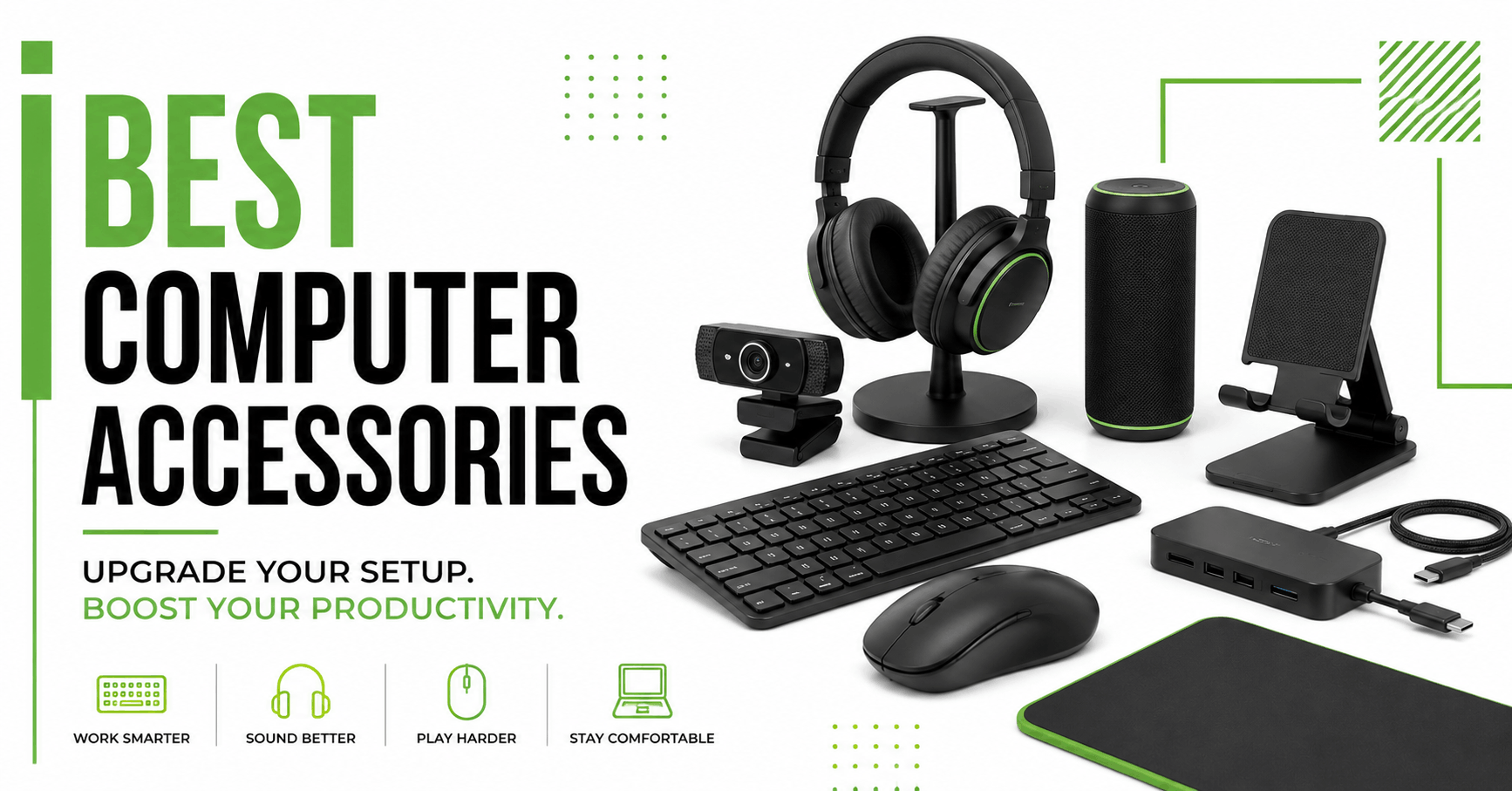
Most people don’t think about their computer accessories until something starts bothering them. A wrist that aches by 3 p.m. is one of those things. A webcam that makes every call look like it’s happening in a basement. A single USB-C port fighting for space with a phone charger, a monitor cable, and an external drive.
If you’re looking into the best computer accessories for your setup, the honest answer is that a handful of categories do almost all the work. You don’t need a drawer full of gadgets. You need the right two or three things, chosen for the problem you actually have.
This list is built around what genuinely improves day-to-day computer use, not what photographs well on a product page.
Quick Verdict
For most people, the highest-impact upgrades are a good keyboard, an ergonomic mouse, and a reliable USB-C dock. Everything past that is refinement, which is useful but not where the biggest gains live.
| Accessory | Best For | Typical Price Range | Skip If |
|---|---|---|---|
| Mechanical keyboard | Typing feel, durability | $60-$200 | You share a workspace (noise) |
| Ergonomic mouse | Wrist or hand strain | $30-$100 | You already like your trackpad |
| USB-C dock | Multi-monitor, laptop workflows | $50-$150 | Your desktop has plenty of ports |
| External monitor | Multitasking, screen real estate | $150-$500 | Desk space is genuinely tight |
| Webcam | Video calls, streaming | $40-$150 | Your laptop’s camera is recent |
| Laptop stand | Posture, airflow | $20-$60 | You mainly use a desktop |
| Noise-cancelling headset | Calls in noisy rooms | $80-$300 | Your workspace is already quiet |
Prices move around constantly, so treat these as ballpark figures rather than fixed numbers. Check current listings on retailers like Amazon or go straight to the manufacturer before you buy.
Mechanical Keyboards: The Upgrade Everyone Underrates
A keyboard feels like a keyboard, right up until you’ve typed on a genuinely good one for a few weeks. Then going back to a laptop’s flat stock keys feels like a downgrade you can’t unfeel.
What tends to surprise people is that switch type matters more than brand name. Linear switches (Cherry MX Red is the classic example) feel smooth with a quieter profile, decent for shared spaces. Tactile switches give you a small bump of feedback without the audible click. Clicky switches are satisfying at home and genuinely annoying in an office full of people on calls, so match the switch to your surroundings before you match it to your budget.
Logitech, Razer, and Keychron all make solid boards across price points. Keychron in particular has built a following among people who want that mechanical feel without paying flagship prices, and their site lists switch options clearly if you want to compare before ordering.
In my experience, people regret the loud, clicky board far more often than the quiet tactile one. It’s fun for the first week, and then it’s the thing your coworkers mention on every call.
Pros: better typing feel, longer lifespan, customizable on higher-end models. Cons: louder depending on the switch, bulkier on the desk, and a short learning curve for the layout.
Ergonomic Mice and the Wrist Pain Nobody Mentions Early Enough
Wrist strain builds slowly. By the time it becomes uncomfortable, you’ve likely been using the wrong mouse shape for months without realizing it.
A vertical mouse or a trackball changes the angle your wrist sits at, and for many people that shift alone cuts down on discomfort. Logitech’s MX line, especially the MX Vertical and MX Master series, shows up on nearly every recommendation list, and not by accident. The build quality holds up over years of daily use, and the per-application button customization matters more once it’s actually set up than it sounds like it would on paper.
Trackballs keep your hand mostly still while your thumb or fingers move the ball, which helps if desk space is limited or your shoulder is the real problem. Vertical mice keep the hand in more of a handshake position but still involve arm movement, closer to a standard mouse. Neither wins outright. It depends on where your discomfort is actually coming from, and if it’s persistent, that’s worth mentioning to a doctor rather than solving entirely through hardware.
USB-C Docking Stations: The Quiet Workhorse
This type of dock is the category that does the most for anyone running a modern laptop with two or three ports total. Plug in one cable, and suddenly you’ve got monitors, Ethernet, external storage, and charging, all live at once.
Anker and CalDigit both come up constantly in professional setups, and CalDigit’s Thunderbolt docks have a strong reputation for staying stable under heavy multi-monitor loads, which is precisely where cheaper hubs tend to fall apart.
A mistake I see often: someone buys the cheapest dock on the shelf, then blames their laptop when the external monitor starts flickering under load. Spend a little more here. It’s not really a category where budget options hold up long-term.
Pros: real convenience, less cable clutter, often faster charging built-in. Cons: Cheap models can overheat or drop connections, while Thunderbolt versions become pricey quickly.
External Monitors: When One Screen Isn’t Enough
If your work involves any real multitasking, spreadsheets next to email, or code next to documentation, a second monitor probably saves more time than most software subscriptions you’re paying for. A 27-inch 1440p panel is the best choice for most people, sharp enough without raising the price too much.
People recommend Dell’s UltraSharp line and LG’s UltraGear monitors for different reasons. Dell tends to lean toward color accuracy and build quality, better suited to office and creative work. LG leans more toward refresh rate, which matters if gaming is part of the mix too. Details on current models are on Dell’s official site.
Ultrawide monitors deserve a mention here as well. They effectively replace a two-monitor setup with one continuous screen, and once people adjust to the wider field of view, a standard aspect ratio starts feeling cramped.
Webcams: Still Worth It Even With a Decent Laptop Camera
Most laptops released in the last couple of years have a passable built-in camera. Passable and actually good on a call are two different things, especially in a dim room or on an older machine.
Logitech’s Brio and StreamCam models stay popular for reasons that hold up: consistent color, reliable autofocus, and drivers that don’t need constant fiddling to work properly. If you’re on camera daily for work, a dedicated webcam is a small fix for a problem most people don’t notice until they see themselves washed out on someone else’s screen.
Laptop Stands and the Posture Problem
This one seems minor until you notice you’ve been hunched over a screen that sits eight inches too low for hours a day. A stand raises the display to eye level, which takes real pressure off your neck. It also means you’ll need an external keyboard and mouse, since the laptop’s own keyboard ends up sitting too high once the stand is in place.
Aluminum stands from brands like Rain Design or Twelve South hold their shape well and don’t wobble under a heavier laptop. Foldable options are fine for travel but tend to flex more under weight, so they’re a compromise rather than an upgrade.
Noise-Cancelling Headsets for Calls and Focus Work
If your workspace has any background noise, kids, roommates, or an open floor plan, a good noise-canceling headset turns calls from stressful into manageable. Bose and Jabra both build headsets aimed specifically at hybrid work rather than pure music listening, with microphones tuned to cut background chatter rather than just cancel ambient sound for you.
This is one category where spending more genuinely pays off. Cheaper microphones tend to sound thin on the receiving end of a call, even when the noise cancellation itself performs fine. For a broader look at how active noise cancellation actually works, Wikipedia’s overview is a decent starting point.
Which Accessory Should You Actually Buy First?
Start with whatever’s causing the most friction right now, not whatever’s trending. A sore wrist means buying the mouse. Constant cable juggling means buying the dock. If people are struggling to hear you on calls, it means you should fix the headset before anything else on this list.
Buying everything at once rarely pays off the way people expect. Accessories work best when they’re solving a problem you already have, rather than filling out a “best of” list, this one included.
FAQs
Do I need a mechanical keyboard, or is a good membrane keyboard enough? A quality membrane keyboard is genuinely fine for most people. A mechanical board is a preference upgrade rather than a necessity, unless you’re typing for hours daily and want the extra tactile feedback.
Is a USB-C hub the same thing as a docking station? Not quite. Hubs are usually smaller and cheaper, handling a few extra ports for lighter use. Docking stations are built for sustained, heavier workloads, often supporting multiple monitors and higher power delivery at once.
How much should I spend on a webcam? Somewhere between $40 and $100 covers most people’s needs. Going higher only makes sense if you’re streaming professionally or need 4K capture specifically.
Are ultrawide monitors better than running two separate monitors? It depends on your workflow. Ultrawides are cleaner, one screen with no bezel gap in the middle, but dual monitors let you angle each screen independently, which some people still prefer for reference material.
Read Also: Simple Living Tips: A Practical Guide to a Calmer Life